Which TVs does the app work with?
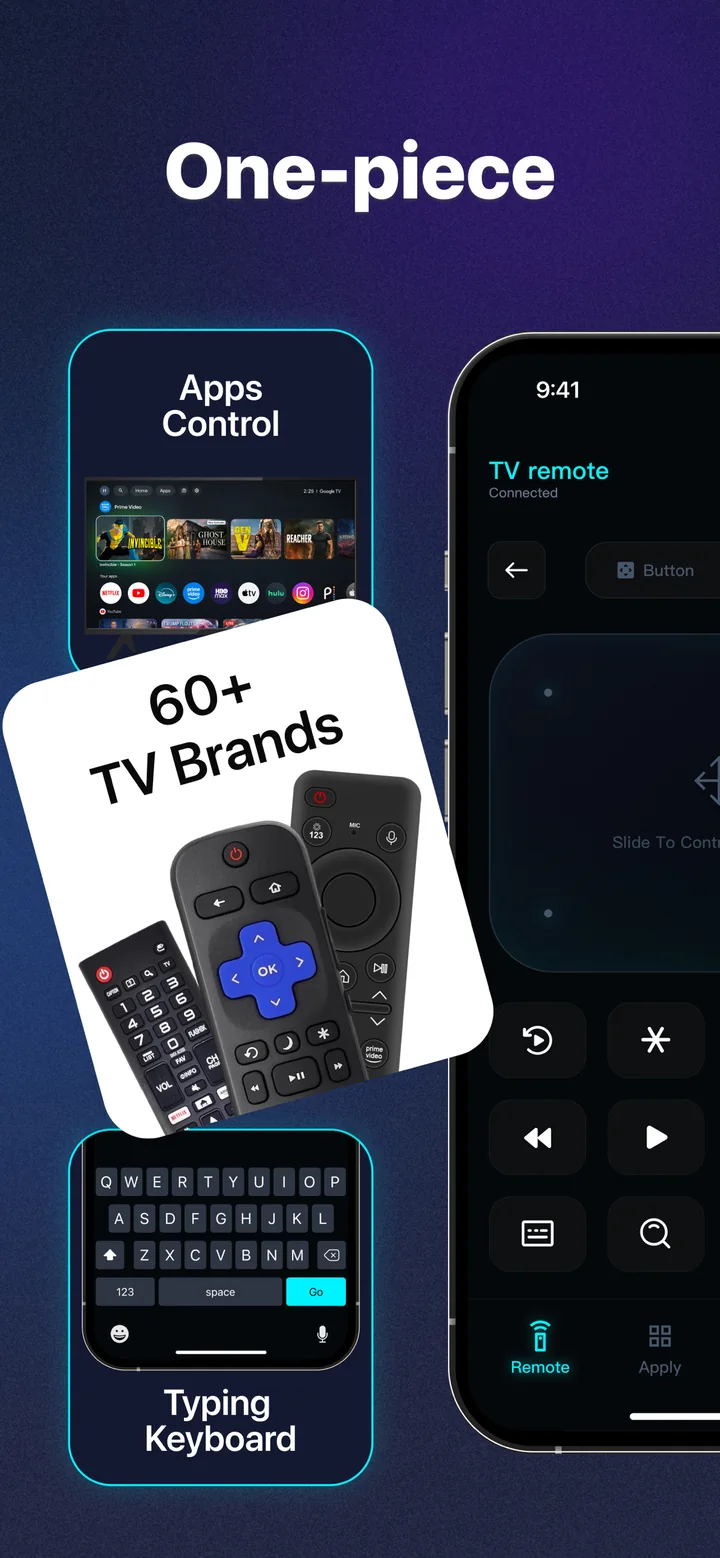
TV Remote supports almost all major smart TV brands, including Samsung, LG, Sony, Vizio, Roku, Fire TV, Hisense and TCL. As long as your TV is a smart TV connected to your Wi‑Fi, it is very likely supported.
Do I need any extra hardware or an IR blaster?
No. The app controls your TV over your home Wi‑Fi network, so there is nothing extra to buy. Your iPhone and TV simply need to be on the same network.
How do I connect to my TV?
Make sure your iPhone and TV are on the same Wi‑Fi, then open the app. It automatically detects compatible TVs nearby — just pick yours from the list and confirm to pair.
Why can the app not find my TV?
In almost every case it is because the phone and TV are on different Wi‑Fi networks (for example a 2.4 GHz vs 5 GHz band, or a guest network). Connect both to the same network, make sure the TV is powered on, and scan again.
Can I mirror my iPhone screen to the TV?
Yes. The app includes screen mirroring and casting so you can send photos, videos and on‑screen content to your TV and enjoy it on the big screen.
Is the app free?
The app is free to download and includes the core remote experience. An optional Premium subscription unlocks the full feature set. You can manage or cancel a subscription any time in your iPhone Settings under your Apple ID.
Support
Get help with TV Remote: Universal Control. Connection tips, compatibility, subscriptions and how to contact support.
SupportNever lose the remote again
Download TV Remote: Universal Control and command your smart TV from the device that is already in your hand.

Free to download · In‑app purchases available