01
Join the same Wi‑Fi
Make sure your iPhone and your smart TV are connected to the same Wi‑Fi network — that is the only requirement.
 TV Remote
Make sure your iPhone and your smart TV are connected to the same Wi‑Fi network — that is the only requirement.
Open the app and it automatically scans for compatible TVs on your network, ready for instant pairing.
Choose your TV from the list and confirm. The connection is remembered for next time.
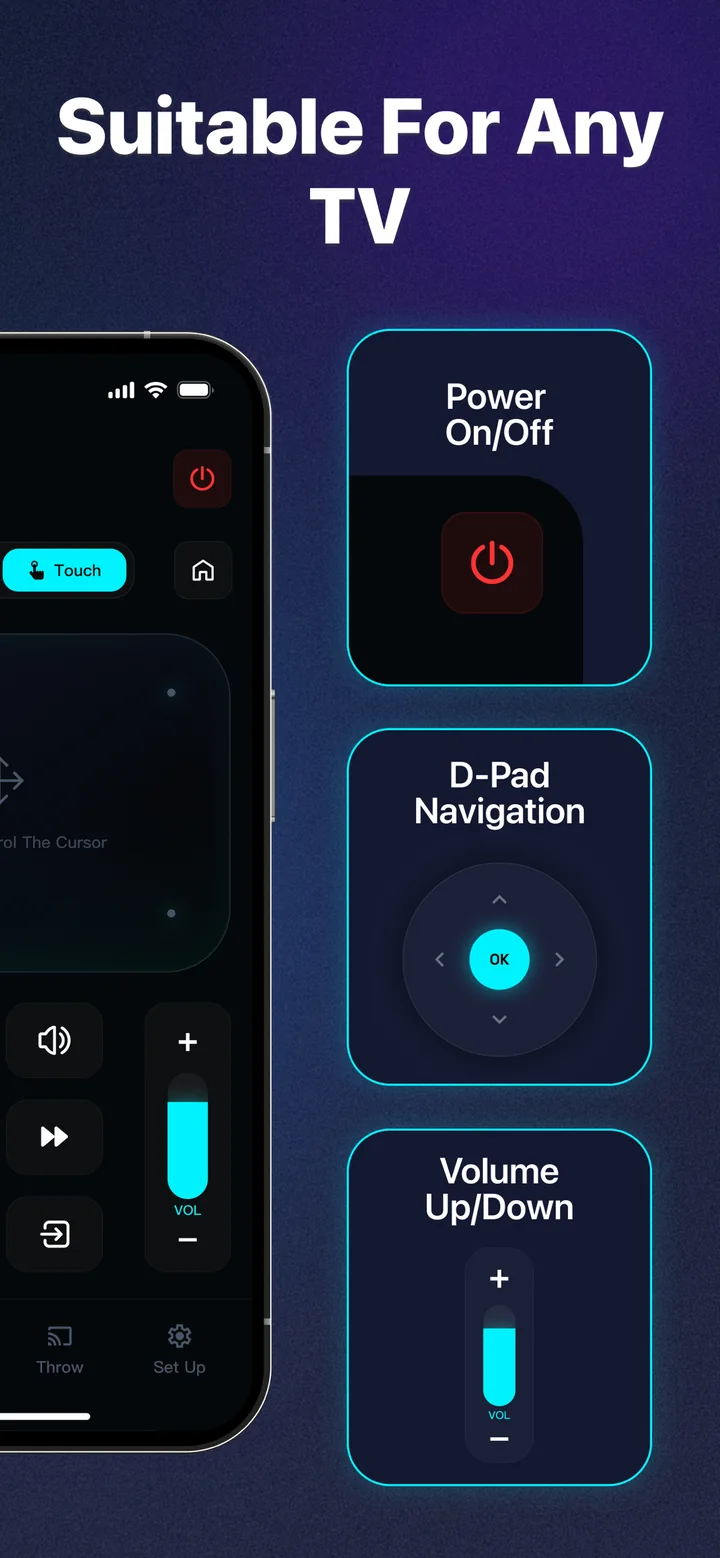
Power, volume, navigation, apps and mirroring — all from a remote that is always in your pocket.
One app for the whole living room. If it is a smart TV on your Wi‑Fi, chances are TV Remote already speaks its language.
No codes, no pairing dance, no IR blaster. Put your iPhone and TV on the same Wi‑Fi and the app finds your TV automatically.
Download TV Remote: Universal Control and command your smart TV from the device that is already in your hand.
Free to download · In‑app purchases available